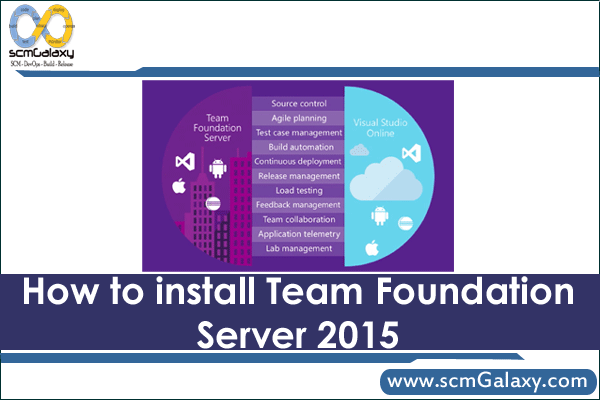
Originally published on 2016-08-20; fully revised and updated.
This guide walks through a practical installation path for Team Foundation Server (TFS) 2015 using the same components referenced in the original post: SQL Server Express 2016, TFS 2015 installer media, and TFS 2015 Update 3. It is most useful for teams maintaining legacy on-premises TFS environments and needing a clear, repeatable install flow.
Original download sources referenced by this guide
The original article points to the following Microsoft pages:
Note: legacy Microsoft download URLs can change over time. Validate each link and artifact name before production use.
Choose the right TFS 2015 media option
The source describes two installation media paths: web installer (.exe) and ISO image. Choose based on connectivity and repeatability needs.
| Option | How it works | Best for | Internet needed during install |
|---|---|---|---|
| .exe – Run now | Download and execute immediately | One-off install on a connected machine | Yes |
| .exe – Save and run later | Download installer now, run later | Deferred install on same or another connected machine | Yes (as described in source) |
.exe with /layout |
Create local offline package from the web installer | Offline-capable installs and repeatable lab setups | Needed to build layout; later installs can use local files |
| .iso image | Download DVD5 ISO media | Air-gapped or media-based installation workflows | Not required once ISO is downloaded |
Installation workflow
flowchart TD
    A[Prepare host and admin access] --> B[Download SQL Server Express 2016]
    B --> C[Install SQL Server Express]
    C --> D[Download TFS 2015 media]
    D --> E{Install method}
    E -->|Web installer| F[Run EXE]
    E -->|Offline layout| G[Run EXE with layout switch]
    E -->|ISO| H[Mount or burn ISO]
    F --> I[Install TFS 2015]
    G --> I
    H --> I
    I --> J[Install TFS 2015 Update 3]
    J --> K[Validate TFS services and access]
Step-by-step installation sequence
1) Install SQL Server Express 2016
Download and run the SQL Server 2016 Express installer from the Microsoft link above. Complete the installation first so a SQL instance is available before TFS setup.
2) Install Team Foundation Server 2015
Use one of the methods listed in the original source:
- Install over the Internet: choose the
.exe, then either Run now or Save for later execution. - Create local offline installer: save the
.exe, open a command prompt in that folder, and run with/layout. - Use ISO media: choose the
.isooption and install from the downloaded image.
3) Apply Team Foundation Server 2015 Update 3
After base TFS 2015 installation, install TFS 2015 Update 3 from the Microsoft download channel referenced by the original post. This keeps the server aligned with the update level explicitly called out in the source material.
Command example: create offline layout from the web installer
The original instructions mention running the installer with /layout. Example:
cd /d "%USERPROFILE%\Downloads"
TFS2015Installer.exe /layoutCode language: JavaScript (javascript)
Replace TFS2015Installer.exe with the actual downloaded file name.
Post-install validation checklist
- Confirm SQL Server Express services are running.
- Confirm TFS services start successfully after installation/update.
- Open the TFS web access URL from a browser on the server or a client machine.
- Create a test team project or connect from Visual Studio to verify end-to-end connectivity.
Common pitfalls
- Using outdated or moved download links without validating artifact integrity.
- Skipping Update 3 after base TFS 2015 installation.
- Assuming offline install is possible without first creating layout files or downloading ISO media.
- Proceeding without checking Microsoft compatibility guidance for your exact OS and SQL combination.

I’m Rajesh Kumar, a DevOps, SRE, DevSecOps, Cloud, and Platform Engineering expert passionate about sharing practical knowledge, real-world experiences, and industry best practices. I have worked at Cotocus and regularly write about technology, travel, investing, health, product reviews, and digital marketing through my various platforms.
I publish technical articles at DevOps School, travel stories at Holiday Landmark, stock market insights at Stocks Mantra, health and fitness guidance at My Medic Plus, product reviews at TrueReviewNow, and SEO and digital marketing strategies at Wizbrand.
Find Trusted Cardiac Hospitals
Compare heart hospitals by city and services — all in one place.
Explore Hospitals